Odoo Issue Reporting – Employee Guide
This guide explains how employees should report issues in Odoo in a structured and effective way. Following this process helps resolve issues faster and avoids confusion or duplication.
Check the workflow first (status, mandatory fields, access rights).
If issue persists, take screenshots (full screen, status, error message).
Create a Helpdesk ticket via:
- Odoo form submission Create a ticket
- Email: varhelp@odoo.rossignol-holding.com
Use the Helpdesk Ticket Template.
One issue = one ticket.
❌ No DMs or one‑to‑one messages.
Please refer the sample template:
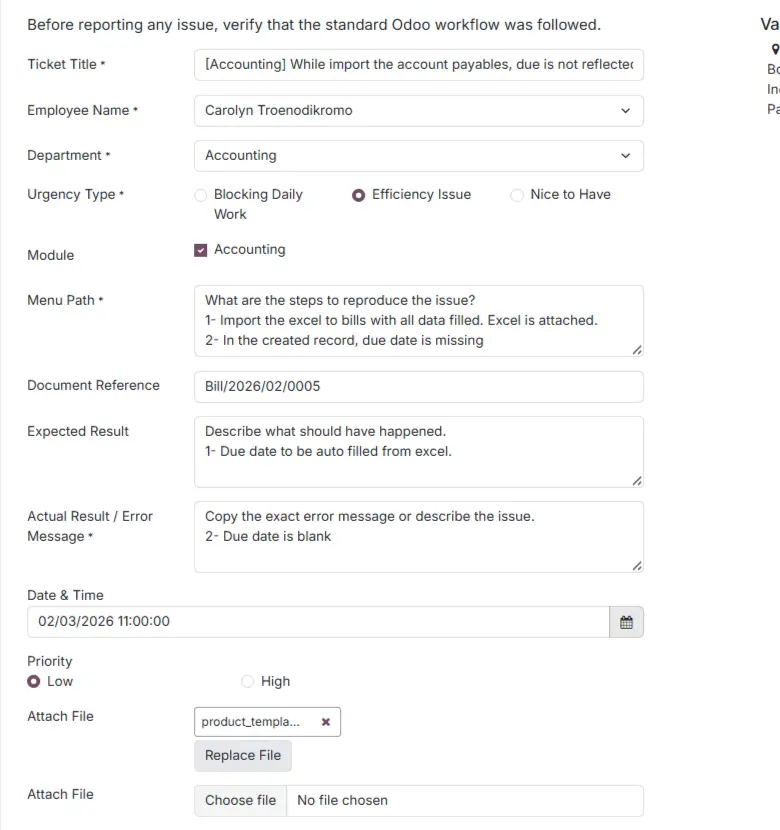
Field-by-Field Detailed Explanation
Ticket Title (Subject)
[Odoo Module] – Short Issue Description
Example: Odoo Inventory – Transfer Validation Error
1. Employee Name:
2. Department / Team:
3. Urgency Type:
- Blocking Daily Work
- Efficiency Issue
- Nice to Have.
4. Modules:
(Inventory / Sales / POS / Accounting / HR / Other)
5. Menu Path: What are the steps to reproduce the issue?
Example:
Step 1: Go To Inventory ▸ Operations ▸ Transfers
Step 2: Create transfer
Step 3: Could not reserve the qty
6. Document Reference:
(SO / PO / Invoice / Transfer / Lot / JE Number)
Example: IVSV/2026/001
6. Expected Result: Describe what should have happened.
Example:
On click check Availability, it needs to reserve the stock.
7. Actual Result / Error Message:
Copy the exact error message or describe the issue.
For Example: On click the Check availability, the item on hand could not be reserved.
8. Date & Time of Issue:
9. Business Impact:
(Low / High – explain briefly)
Attach all applicable screenshots:
📸 Screenshot 1: Full Odoo screen showing the document and status
📸 Screenshot 2: Error or warning message popup
📸 Screenshot 3: Related lines or configuration (if applicable)
Tickets without screenshots may be delayed.
Responsibility Matrix
| Role | Responsibility |
| Employee | Verify workflow, report issue properly |
| Team Lead | Review the issue and address it immediately; escalate if it cannot be resolved. |
| Odoo Support | Analyse and resolve reported issues |